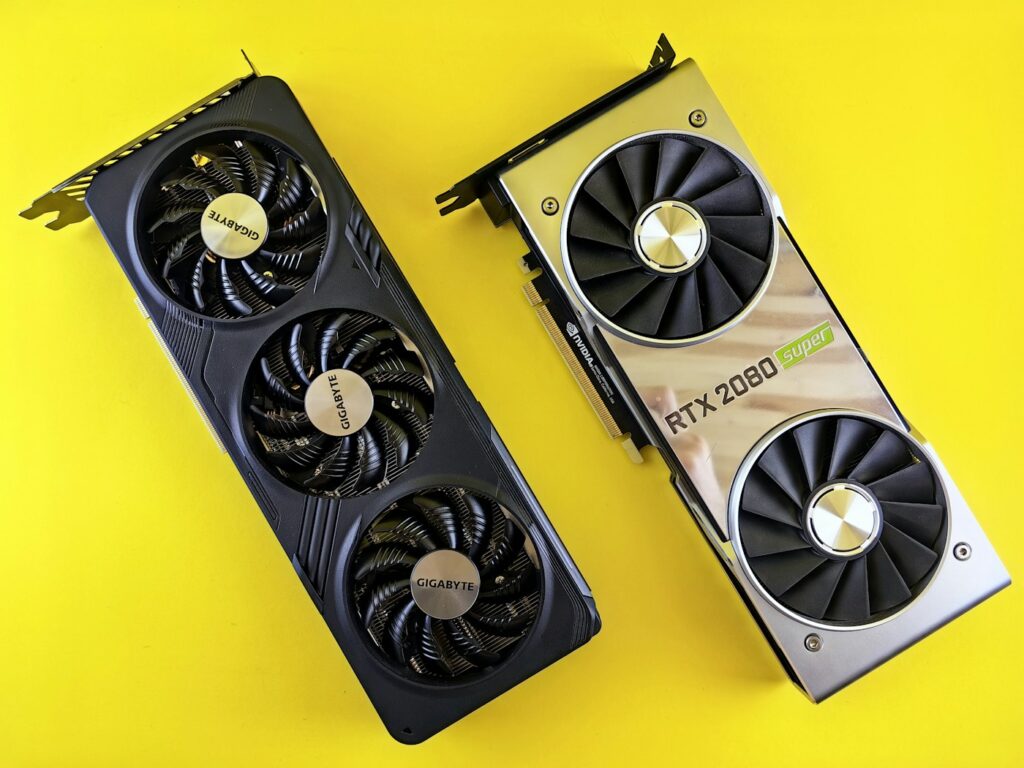
If your PC game offers NVIDIA DLSS, AMD FSR, Intel XeSS or Frame Generation, you may be unsure which setting to choose. All three technology families try to improve the balance between image quality and performance, but support differs by game, hardware and version. Most importantly, the FPS number reported when frame generation is active does not always reflect the same responsiveness as a similar number of genuinely rendered frames. This guide explains the practical differences without inventing hardware benchmarks. Updated October 18, 2026.
How upscaling works
A game can render a frame at a lower internal resolution and reconstruct an image closer to the display’s output resolution. This reduces some of the workload on the GPU, although the benefit depends on the rendering bottleneck. Upscaling algorithms use different information and strategies to rebuild edges, detail and motion.
Typical problems include shimmering fine lines, soft text and ghosting behind moving objects. Higher-quality modes often protect detail better than aggressive performance modes, but the best choice depends on your display and the actual game integration.
NVIDIA DLSS explained
DLSS includes several distinct technologies, such as Super Resolution, Ray Reconstruction and frame generation methods. Do not assume that supporting one DLSS feature means your GPU supports every other feature. NVIDIA launched DLSS 4 Multi Frame Generation for eligible GeForce RTX 50 graphics cards, while other DLSS features support other RTX generations.
A game must actually integrate the relevant feature, and updated drivers or game versions may change available choices. Start by checking your own hardware and the specific option listed in the game menu.
AMD FidelityFX Super Resolution
FSR is a family of AMD techniques with different requirements across generations. Earlier upscaling methods were supported by graphics hardware from multiple vendors; more recent machine-learning features can have stricter compatibility conditions.
Do not treat FSR Upscaling and FSR Frame Generation as interchangeable. Radeon Super Resolution, which operates through certain driver paths, is also not exactly the same as an FSR implementation integrated directly by a game developer.
Intel XeSS and compatible hardware
XeSS uses reconstruction and AI-related techniques to upscale frames, with implementation paths that vary by GPU capabilities. Intel also introduced XeSS 2 technologies, including frame generation and low-latency features on eligible hardware.
Check the support table for your game and exact GPU rather than assuming that every XeSS feature works on any Intel Arc or competing graphics card.
Upscaling versus Frame Generation
Upscaling seeks to produce a sharper output image from a lower-cost source frame. Frame Generation inserts estimated intermediate images into the displayed sequence. These generated frames can make motion look smoother but do not constitute equivalent new game-simulation or input updates.
That distinction matters in competitive games, where mouse response is often more important than a high displayed FPS number. Some configurations require latency-reduction features to keep the experience responsive.
Quality, Balanced and Performance modes
Quality is often a sensible starting point when you need more performance but still want good fine detail. Balanced makes a different compromise, while Performance typically sacrifices more input detail for a larger reduction in rendering work.
Do not assume a fixed percentage FPS increase for any of these modes. Results can be limited by the CPU, server performance, shaders or other components rather than GPU pixel rendering.
A repeatable way to test settings
Use the same game scene or repeatable benchmark, monitor frame times as well as average FPS, and change just one setting at a time. Compare both static and fast-moving scenes. Try native resolution first, then the highest-quality upscaling option available.
If the displayed frame rate increases but aiming feels sluggish, test again with frame generation disabled. Watch for ghosting, UI distortion and sudden frame-time spikes, not just the average counter.
Troubleshooting
If an option is greyed out, check the GPU model, game version, graphics API and required driver. If lowering resolution hardly changes FPS, investigate CPU utilization and caps. If the image looks blurry, test a higher-quality mode or render at native resolution.
Related tool: Before choosing settings for a specific title, use our PC Game Requirements Checker to compare the game’s published requirements with your CPU, graphics card and RAM. Requirements are not a benchmark or guaranteed FPS estimate.
Frequently asked questions
Is DLSS always better than FSR?
No single ranking applies to every game, hardware configuration and technology version.
Does doubling generated FPS double mouse responsiveness?
No. Generated display frames do not necessarily add corresponding input and simulation updates.
Can I run XeSS on a non-Intel GPU?
Some super-resolution implementation paths support other hardware, but newer features have separate requirements.
Official sources
Independent editorial coverage by Ponch Gaming; relevant names and imagery remain the property of their owners.
