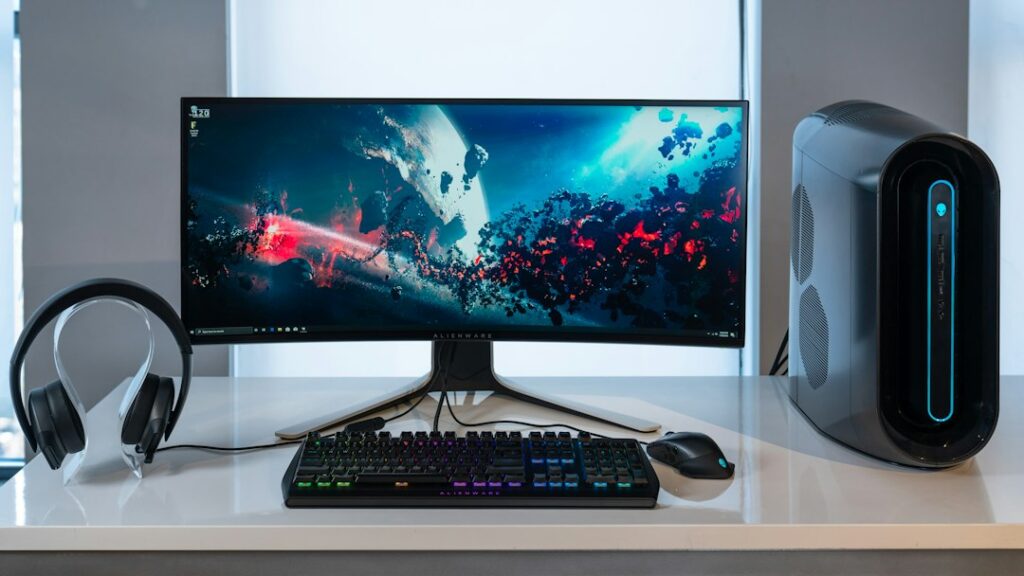
Not every FPS problem is caused by a weak graphics card. Background tasks, graphics drivers, power plans, thermal limits and shader compilation can also make a Windows 11 game feel slow or inconsistent. This guide focuses on reversible checks and safe settings before you consider buying hardware. It does not claim universal FPS gains because results vary by game and PC configuration. Reviewed October 18, 2026.
Measure the problem first
Run your game with an FPS counter and, if available, a frame-time display. Record your resolution, settings and a repeatable test area so you can tell whether later changes help. Short frame-time spikes can explain choppiness even when the average FPS looks high.
Do not compare results from unrelated games, different servers or scenes with wildly different workloads.
Update Windows and graphics drivers
Install supported Windows 11 security and stability updates. Download graphics drivers from NVIDIA, AMD or Intel’s official application or website, rather than third-party driver-updater advertisements.
New drivers may fix issues in specific games, but you can also check vendor release notes when a recently updated driver introduces a known problem.
Use Windows Game Mode thoughtfully
Windows provides Game Mode under Settings → Gaming. It can help prioritize game-related activity in supported scenarios, although results depend on the computer and workload.
Test your own setup with Game Mode enabled before assuming it raises FPS in every title. Other graphics settings should be changed individually so the outcome is measurable.

Check graphics settings and GPU selection
On systems with integrated and discrete graphics, verify that demanding games run on the intended GPU. Windows graphics settings can influence per-app preferences, but laptops may also apply vendor-specific power management.
Monitor usage to see whether the CPU, GPU, memory or storage is the likely limit. Turning graphics quality down will not solve every CPU bottleneck.
Reduce unnecessary background activity
Close unneeded recording overlays, browser tabs and launchers while testing, particularly on memory-constrained systems. Avoid disabling security tools permanently just to seek an FPS improvement.
Background recording may be useful for content creators, but its resource use should be accounted for when measuring a game.
Storage, temperatures and memory
An SSD is preferable for games that stream large amounts of world data. Examine available storage and watch temperatures for sustained throttling. Do not move or disable the Windows page file based on one social-media anecdote.
If performance degrades over time, heat and resource saturation are worth investigating before modifying advanced system settings.
Upscaling and frame generation
Technologies including DLSS, FSR and XeSS can help in GPU-limited games, but their support and tradeoffs vary by hardware and version. Test visual quality, generated FPS and input latency as separate observations.
A high FPS display is not proof of low latency. Competitive games often benefit from consistent real frame rendering and responsive input.
Frequently asked questions
Does Game Mode guarantee more FPS?
No. It may help some configurations, but testing is essential.
Should I disable the page file?
Not as a general gaming tweak; arbitrary virtual-memory changes can make system stability worse.
Is an SSD always enough to fix stutters?
No. CPU limits, drivers, shaders, RAM or software bugs can all contribute.
A repeatable 15-minute troubleshooting checklist
Instead of applying ten online tweaks at once, use the following process to identify what actually helps on your machine. This is a testing procedure for the reader, not a claim that Ponch Gaming benchmarked a particular graphics card.
- Choose a repeatable scene in one game (the same map, camera route and graphics preset). Record the game version, display resolution, upscaling setting and whether background recording is running.
- Record average FPS and, if your tool supports it, 1% lows or frame-time spikes for a similar period each run. Do not compare a quiet menu with a busy multiplayer battle.
- Change one reversible setting, restart the game if required, and repeat the scene. Note whether responsiveness, image quality or loading behavior changes as well as FPS.
- Repeat a run before treating a small difference as meaningful. Multiplayer population, background downloads and shader compilation can introduce noise.
- If an adjustment makes things worse, revert it before testing the next option. Keep a list of the original settings so you can roll back safely.
Diagnosis table: match the symptom to the first safe check
| What you notice | First check | What not to conclude |
|---|---|---|
| GPU is busy and FPS drops in detailed scenes | Lower a costly in-game effect or render resolution, then retest the same scene. | It does not prove Windows itself is misconfigured. |
| Average FPS is high but movement feels uneven | Look at frame-time consistency, capture/overlay load and shader compilation. | A single average FPS number cannot measure stutter. |
| FPS drops after playing for a while | Check GPU/CPU temperatures, clock changes and memory use during a long session. | Do not immediately assume the graphics card is defective. |
| A laptop unexpectedly uses its integrated GPU | Go to Settings → System → Display → Graphics, select the game and choose High performance when supported. | This will not create a second GPU on a system that has only one. |
| Borderless DirectX 10/11 gaming feels less responsive | Test Optimizations for windowed games, then restart the application. | Microsoft does not promise an FPS gain in every game or DX12 title. |
| The PC boots slowly and games launch with many apps open | Inspect Startup apps in Task Manager and turn off only optional auto-start entries. | Do not disable security software or essential drivers to gain FPS. |
Microsoft documents the windowed-game setting and per-app GPU selection. Its Startup apps guide explains how to stop an optional application opening automatically without uninstalling it.
How to measure frame times without inventing FPS results
The time between displayed frames often explains why two games running at similar averages feel different. A few long frames can produce a noticeable hitch even if the average FPS is relatively high. If your game exposes a frame-time graph, use it alongside FPS. For compatible Radeon systems, AMD Software: Adrenalin Edition includes a metrics overlay and optional logging for FPS, frame time and stutter rate. The available measurements vary by hardware and installation.
Open your supported AMD Software installation, locate Performance / Metrics, choose the measurements you need and enable the overlay or logging for the test; see AMD’s official metrics instructions. For other GPUs, use supported tools provided by the game or the graphics vendor. Do not report those results as measurements made by Ponch Gaming unless an actual, documented test was performed.
Image quality, upscaling and input lag: separate three different outcomes
If a game supports DLSS, FSR or XeSS, upscaling can raise the reported frame rate by rendering at a lower internal resolution, but visual sharpness, artifacts and hardware support differ. Frame generation is another feature: the displayed frame counter may increase without the same change in game-engine simulation or input response. A balanced test should therefore note (1) measured frame rate, (2) perceived image quality in motion and (3) mouse or controller responsiveness, instead of declaring the preset with the largest FPS number the winner.
When tuning for competitive play, first verify stable real rendering and acceptable latency. If you prioritize a single-player cinematic presentation, a different tradeoff may suit you. For a separate comparison of the technologies, read our DLSS vs FSR vs XeSS guide; check the game’s own settings and the supported GPU feature list before changing options.
What we recommend avoiding
- Random registry scripts or ‘FPS booster’ executables: do not run an unreviewed download with administrator permissions.
- Disabling Windows Defender, the page file or system services: these are not reliable universal FPS improvements and may increase security or stability risks.
- Overclocking as the first step: it adds variables when you are still diagnosing a driver, configuration or thermal issue.
- Changing ten settings at once: if the game runs better, you will not know which action helped; if it runs worse, troubleshooting becomes harder.
Check Microsoft’s supported performance checklist before applying Windows-wide modifications. You can also use our PC game requirements checker to compare your listed hardware against supported game requirements; its CPU/GPU performance judgments are estimates, not live benchmarks.
Arabic edition: Our detailed Arabic Windows 11 gaming guide covers refresh rates, VRR and the graphical settings screen in greater depth. This English article focuses on a repeatable diagnosis rather than copying claimed percentage gains from another PC.
Sources
Independent editorial information from Ponch Gaming. Images and game brands belong to their respective owners.