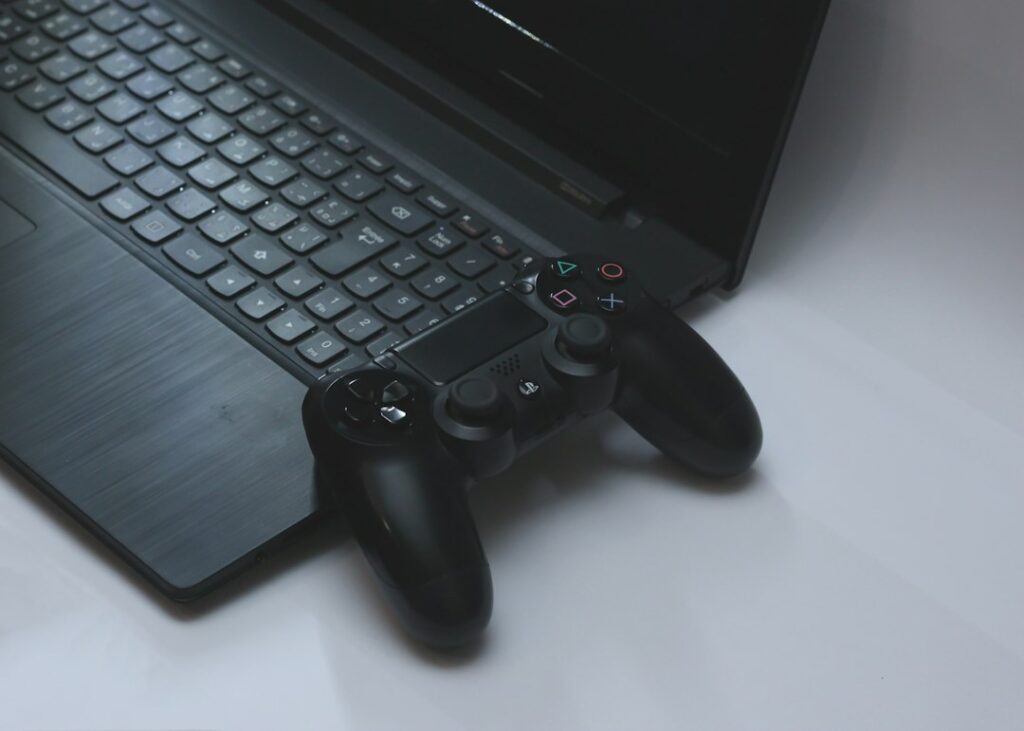
PS Remote Play lets you stream games running on your own PlayStation 5 or PlayStation 4 to a supported phone, tablet or computer. It is not the same as cloud gaming: your console is still doing the work and needs to be on or ready to wake from Rest Mode. This guide explains the setup, supported devices, internet requirements and practical fixes for connection problems. Details are based on Sony’s official support documentation, updated October 18, 2026.
Requirements and recommended internet speed
You need a PS5 or PS4 with current system software, the free PS Remote Play application on a compatible device, and the PlayStation account used on the console. Sony specifies a minimum of 5 Mbps upload and download and recommends 15 Mbps or higher for a better experience. Connection stability, Wi-Fi congestion and latency are important: a fast speed-test result does not guarantee smooth game streaming.
A DualSense or another compatible controller can be used depending on your device. Some mobile devices also support touch controls, although controller pairing features differ across Android, iOS, Windows and macOS versions.
Enable Remote Play on your PS5
On the console, open Settings, select System and then Remote Play. Turn on Enable Remote Play. To connect when the console is resting, visit Settings → System → Power Saving → Features Available in Rest Mode, and enable Stay Connected to the Internet and Enable Turning On PS5 from Network.
A completely powered-off PS5 usually cannot be awakened by Remote Play. The television does not need to remain turned on once the system has been configured.
Set up PS Remote Play on Android or iPhone
Install PS Remote Play from the official Google Play Store or Apple App Store. Sign in to the same PlayStation account you use on your console, choose PS5 and let the application search for your system. Once it connects, the console’s interface appears on your phone and you can launch supported games.
If you want to use a wireless controller, check Sony’s compatibility page before purchasing accessories. Mobile data streaming is supported in some configurations but can use significant data, so watch your plan allowance when you are away from Wi-Fi.
Set it up on Windows or Mac
Download the computer version from Sony’s official Remote Play website and install it. Connect a supported controller, sign in with your account, and select your console. The application will attempt automatic discovery; follow its pairing instructions if manual registration is required.
Streaming a PlayStation game to a PC does not convert it into a native Windows game. You still depend on console compatibility, your network and supported input devices.
Fix lag, stuttering and connection failures
First confirm that Remote Play is enabled, your console is connected and the PlayStation service is operational. Connect the console to the router using Ethernet where possible, and use a stable Wi-Fi or wired connection on the viewing device. Reduce competing downloads and streaming traffic while testing.
If lag persists, try a lower streaming quality option. NAT restrictions can interfere with remote connections; Sony notes that NAT Type 3 may be problematic. Do not disable router security or open random ports based on unverified advice. Check Sony’s official troubleshooting guide instead.
Remote Play troubleshooting: find the bottleneck before changing your router
Sony’s Remote Play troubleshooting instructions start with connectivity and console readiness. Try a local test on your home Wi-Fi first, then compare the same game from an external network. This helps distinguish a console setting from a mobile network limitation.
| Symptom | First safe action | What it tells you |
|---|---|---|
| Connection fails even on your home network | Confirm Remote Play is enabled, PS5 is on or in correctly configured Rest Mode, and the app uses your PlayStation account. | Start with console and account setup before assuming an ISP problem. |
| Works at home but fails on mobile data | Check the mobile plan, network restrictions and whether the remote connection can reach the console. | Local success points away from the game’s graphics settings. |
| Picture stutters, controller input feels delayed | Connect the console via Ethernet when possible, pause competing downloads and try an available lower streaming-quality setting. | Streaming latency and network congestion differ from game-engine FPS. |
| Cannot wake the console | Check both Rest Mode settings: internet connection and network wake, plus console power state. | A fully powered-off console is not the same as Rest Mode. |
| NAT Type 3 or blocked external connection | Read Sony’s official guidance and consult the router manufacturer or ISP rather than opening arbitrary ports. | Network configuration may be the limiting factor, not the console’s performance. |
Sony lists 5 Mbps upload and download as a minimum and recommends at least 15 Mbps for better results; the numbers are requirements, not latency guarantees. Do not disable firewall protections, security settings or unrelated router services to chase a speed improvement.
What games and features work?
Many regular PS5 and PS4 games can be streamed, but titles requiring specific accessories, including certain VR equipment, may not be compatible. Remote Play itself is a free app, although online multiplayer features of some games may require a separate PlayStation Plus subscription under the game’s own rules.
Test your setup on a local network before relying on it during travel. This helps distinguish problems on your home console from problems caused by public Wi-Fi or mobile networks.
Frequently asked questions
Do I need my TV switched on?
No. You can use your phone or computer screen while the console runs or wakes from properly configured Rest Mode.
Can I connect from another country?
Remote connections can work, subject to account, network and service conditions. Image quality and input delay can vary considerably.
Will any Bluetooth controller work?
No. Supported controllers and connection methods depend on the operating system and Sony’s compatibility list.
Our Arabic PS Remote Play setup and troubleshooting guide covers phones, computers and the difference between a network problem and console configuration.
Official sources
Ponch Gaming publishes independent gaming guides. Brand names and promotional materials belong to their respective owners.
