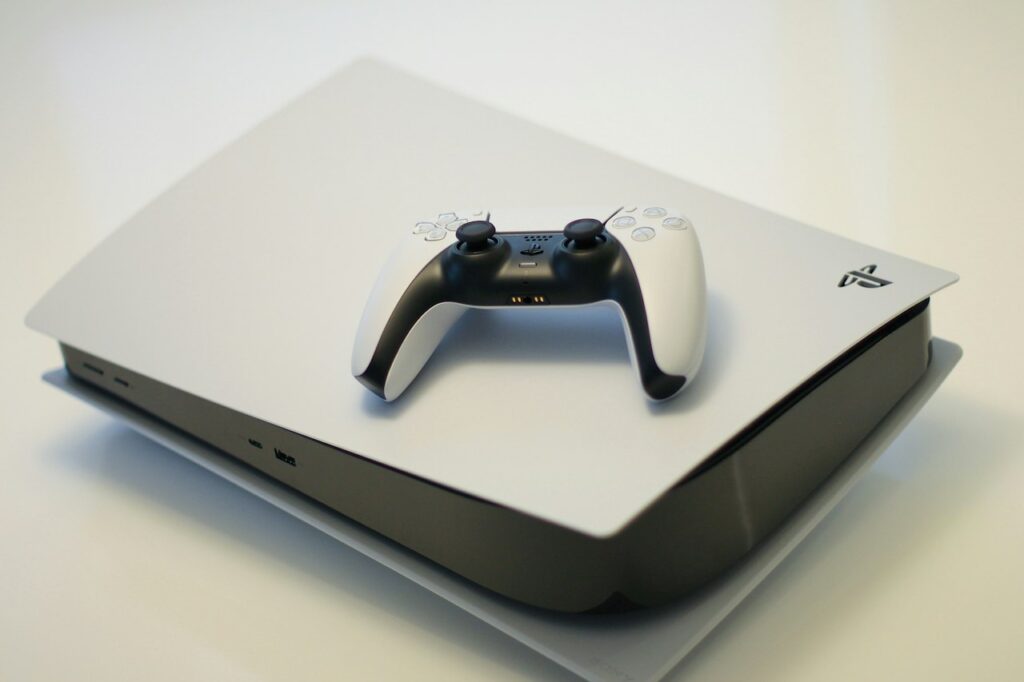
A compatible M.2 NVMe solid-state drive is one of the most useful storage upgrades for a PlayStation 5. Unlike a regular external USB drive, a properly installed expansion SSD can store and directly run PS5 games. But an M.2 label alone is not proof of compatibility: interface, cooling, dimensions and supported capacity all matter. This guide summarizes Sony’s official installation requirements and safe setup instructions. Information reviewed October 18, 2026.
Which SSD specifications does Sony require?
The PlayStation 5 supports PCIe Gen4 x4 M.2 NVMe drives using Key M, with supported lengths 2230, 2242, 2260, 2280 and 22110. Sony lists capacities from 250 GB up to 8 TB, and recommends a sequential read speed of at least 5,500 MB/s. Standard M.2 SATA drives are not compatible with the PS5 expansion slot.
Read speed alone cannot guarantee game performance or compatibility. Verify the exact model number and overall dimensions, including any heatsink, against Sony’s current list of requirements.
Why a heatsink matters

Sony requires effective heat dissipation for an installed M.2 SSD. Buy a drive with a suitable integrated heatsink or install a compatible heatsink correctly. The maximum total width is 25 mm and the complete thickness must fit within 11.25 mm, subject to Sony’s above-board and below-board clearances.
A heatsink that is too tall can prevent the expansion bay from closing. Never force the cover into place and do not add an extra heatsink on top of a drive already fitted with an unsuitable integrated solution.
Install the SSD safely
Update PS5 system software first. Turn off the console completely, disconnect all cables and allow the device to cool. Work on a stable surface, reduce static electricity and follow Sony’s guide for your exact PS5 model because cover-removal steps vary between original, revised and Pro systems.
Open the M.2 expansion bay, position the spacer for your SSD length, insert the drive carefully at the correct angle, fasten the mounting screw and replace the cover. Avoid overtightening. Reassemble the console before applying power.
Format the new drive and transfer games
On the first successful startup, the PS5 may prompt you to format the new M.2 SSD. Formatting erases data already on that drive. Do not insert an SSD containing files you need without backing them up elsewhere first.
You can then move installed games through Game Library and storage settings, or set a supported installation location for future downloads. PS5 and PS4 games can be stored and played from a compatible internal M.2 SSD.
M.2 SSD versus external USB storage
An external USB drive is convenient for storing PS5 games you are not currently playing. However, you generally need to copy a PS5 game back to console storage or the supported M.2 SSD before launching it. PS4 games have different external-drive capabilities.
An M.2 NVMe expansion drive therefore makes more sense when you regularly switch between several large PS5 games and want to avoid transferring files each time.
PS5 Pro and newer Slim models: use the correct cover instructions
The hardware opening steps differ between the original PS5 (CFI-1000 family) and later CFI-2000/7000 console families, including PS5 Pro models. Follow the instructions for the exact console model printed on your unit, rather than assuming that a photograph of a different PS5 revision shows the same cover orientation. Sony publishes separate installation illustrations in its official M.2 SSD support article.
Buying and installation checklist
| Check before spending money | Why it matters |
|---|---|
| PCIe Gen4 x4 NVMe, M Key (not M.2 SATA) | The connectors can look similar, but SATA models are unsupported for PS5 expansion. |
| 250 GB to 8 TB; supported lengths 2230/2242/2260/2280/22110 | Capacity and board length have to fit Sony’s published requirements. |
| Heatsink fitted within 25 mm width and 11.25 mm total thickness | A tall heatsink can prevent the expansion slot cover from closing. Do not force it. |
| Recommended sequential read speed at least 5,500 MB/s | Sony presents this as a recommendation; even a faster advertised number alone is not a compatibility guarantee. |
| Console system software is up to date | Sony advises updating before installation. |
| Drive contains nothing you need to preserve | The console’s first-use formatting process deletes files on that M.2 drive. |
Where should your games be stored?
Internal PS5 storage or compatible expansion M.2: you can install and play supported PS5 games directly. External USB extended storage: you may store PS5 game data there, but you must copy PS5 games back to console or M.2 SSD storage before playing. Supported PS4 games can run directly from USB extended storage. This distinction is confirmed in Sony’s external-storage guide.
If an installed expansion SSD causes a game to misbehave, Sony recommends trying that title from the console’s built-in storage while diagnosing the issue. Formatting a drive with important files or removing it while powered is not an appropriate first troubleshooting step. For a more detailed walkthrough in Arabic, see our PS5 / PS5 Pro SSD installation guide.
Common mistakes to avoid
Do not confuse SATA M.2 with NVMe. Check heatsink dimensions rather than just advertised speed, and confirm the model’s specifications before buying. Do not install hardware while your console is connected to power. Use the correct instructions for your console family and do not interrupt the formatting process.
Sony notes that damage caused by incorrect installation may be excluded from warranty coverage even though installing a compatible drive correctly is an intended user operation.
Frequently asked questions
What capacity should I buy?
Choose based on your game library, budget and the size of the games you regularly keep installed; there is no universal best size.
Can I use the same type in PS5 Pro?
Follow Sony’s supported specifications and the cover-access instructions for your exact console model.
Can I run PS5 games directly from an external USB hard drive?
No. PS5 games stored on standard USB external storage generally must be copied back to supported internal storage to run.
Official sources
Ponch Gaming publishes independent gaming guides. Brand names and promotional materials belong to their respective owners.