Want to improve your frame rate in Rust without sacrificing all visual quality? This guide covers five settings worth testing, authentic in-game press images, and an external FPS estimate with its limitations clearly identified. Change one setting at a time and compare results in the same area and server.
How Much FPS Could You Gain? Estimated Figures
The following figures are published estimates from the FPSHQ model for an RTX 3060 at 1080p. They are not in-game FPS screenshots or results measured by Ponch Gaming. The model assumes no CPU bottleneck, so your actual performance could be significantly higher or lower.
Ultra → Low: about +54 FPS (+76%)
Comparison source: FPSHQ — Rust settings, October 7, 2026. These estimates are not a guarantee or a controlled scientific benchmark.
How to Display Your Actual FPS in Rust
- Launch Rust, join a server, and open the in-game console using F1.
- Enter
perf 1and press Enter to display the FPS counter, or enable an FPS overlay from game settings if your version supports it. - Stand in the same location for a minute before changing anything, and note FPS and any noticeable stuttering.
- Change one setting and repeat. Use F12 on Steam to capture screenshots that document your actual comparison.
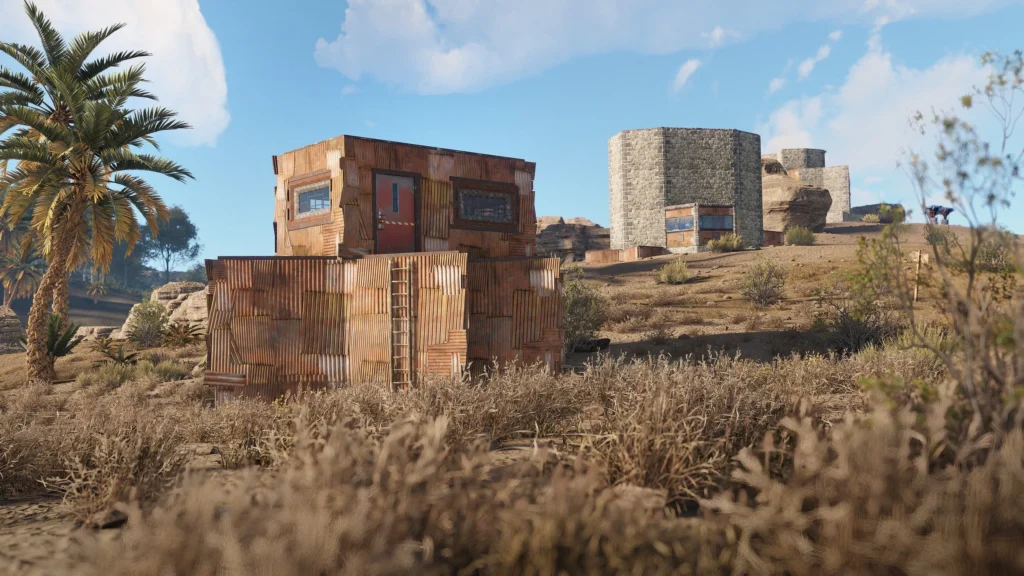
Note: The Rust screenshot below comes from Facepunch press materials; it is not an FPS benchmark. We separate it from the estimated chart above so readers do not mistake it for a before-and-after test.

Five Settings to Try First
- Shadow Quality: Try Low or Medium. If performance drops near large bases, adjust shadows before reducing resolution.
- Water Reflections: Lower reflection quality. You may notice little difference during fights away from the coast.
- Draw Distance: Test a moderate distance instead of the maximum value, balancing visibility against performance.
- Grass / Effects: Reduce vegetation and heavy effects step by step. Do not sacrifice scene clarity simply to chase a higher FPS number.
- Rust Render Pipeline: The October 2026 update introduced the RRP rendering system. If the old pipeline is still available under Experimental, compare both options. Facepunch described modest improvements in most areas, not a fixed FPS boost for every system. See the official update notes.
What Can We Learn From Other Players?
Stuttering despite high FPS: A player with a 9800X3D and RTX 5070 reported that switching away from an HDD-based paging setup and using an SSD resolved their issue. This was specific to their configuration and does not justify indiscriminately moving or disabling the page file on every PC. Read their experience.
Lower settings did not increase FPS: A player using an RTX 4090 and i9-13900KF reported no improvement at Low/1080p compared with 1440p. If you see similar behavior, check CPU load, server conditions and FPS caps rather than continuing to reduce graphics settings. Read the discussion.
150–200 FPS but the game still feels choppy: Another player described microstutter despite a high FPS reading. Monitor frame-time consistency, not just average frames per second. Read the posted experience.
Still Having Performance Problems?
- Little difference between Low and High: Check GPU and CPU utilization and temperatures. You might be CPU- or server-limited.
- Stuttering while new areas load: Make sure Rust is installed on an SSD and inspect memory usage and resource-heavy background applications.
- High FPS but uneven motion: Examine frame times, test a steady FPS cap and compare a quiet server with a crowded one.
- Avoid unknown configuration commands and do not change BIOS or virtual-memory settings based solely on one player’s account.
How to run your own repeatable FPS test
- Record CPU, GPU, RAM, display resolution and monitor refresh rate before changing anything.
- Keep the server, map area and test route as constant as possible. Player populations and nearby structures can affect FPS even with identical settings.
- Measure average FPS and frame-time consistency for a meaningful interval; a momentary high FPS value is not evidence of sustained improvement.
- Adjust one setting, repeat the same route, and revert it if the result is worse.
- Use your own machine to judge the outcome. FPSHQ figures cited here are third-party estimates, not a guaranteed target for every PC.
For an organized comparison of advertised requirements across other titles, open our PC game requirements checker. It does not measure live game performance. If you’re planning to build in Rust, see our 2×1 starter base and airlock guide for a separate, gameplay-focused tutorial.
Conclusion
Start with shadows and reflections, and test changes in the same scene. The figures above are estimates, not measurements of your PC. A dependable “before and after” comparison requires actual in-game measurements and documentation of the GPU, CPU, resolution and server conditions.
Sources: Facepunch Livestock Update · Official Rust images · FPSHQ estimate · Rust community. This is independent coverage, not an advertisement or Facepunch-certified benchmark. Game images belong to their respective owners.